For the less motivated: TL;DR
Every year or two I buy a new phone. Every time I think, “this is the one, I’ll actually keep this one”. I’m always wrong. No matter how much I enjoy a phone or how amazing it seems at launch, I always leave it sooner rather than later. It’s because there’s one thing I just cannot resist; a sexy phone, And has there been a better looking phone in recent memory than the Mystic Bronze Note 20 Ultra?
I have switched back and forth between iPhones and Notes every few years. There was even a BlackBerry Priv mixed in there too. So, one thing I’ve grown accustomed to, is moving from one ecosystem to another. I want my switch to be as seamless as possible. I want to keep all my pictures and contacts, maybe my call history and text messages and the last thing I want is to realize a few months down the road that I have been paying a monthly subscription for something I can’t even use on my shiny new phone.
So, let me use my experience and walk you through the switch as I go through it also. Just for reference, I am moving from my iPhone XS Max to the Galaxy Note 20 Ultra. I personally would recommend a new gmail account, I like to make a new one every couple years though so if you want to keep your old one, that is fine too.
Cancel Your Subscriptions
First thing I do is check my iOS subscriptions. To see your current subscriptions, go into your settings, click your name at the very top, and then select subscriptions.
The short quick answer is to just cancel them all, but that might not be the best solution. Some of these apps are apps you may also use on your new phone and the subscriptions don’t necessarily need to be cancelled. The only subscription I actually needed to cancel was Apple Arcade.
You should also consider cancelling or changing your iCloud Storage Plan, this one is personal preference though. I usually leave mine the way it is. I will most likely be coming back to iOS eventually and it’s nice to have all my files right there to restore to my next phone. It’s also pretty cheap cloud storage that I can use with or without an iPhone.
Backup Your Pictures
Next up is my photos. This one is easy. No matter what phone you own, download Google Photos and set it up to automatically back up the photos on your phone. I never have to worry about my pictures when the time comes to switch phones, they are just there.
If you do not already have Google Photos it’s not too late to start. Download the app now. The first backup may take a while though so don’t wait till the last minute to start.
Contacts and Calendar
These two are also pretty easy. To transfer your contacts you are first going go to go into your iCloud settings on your phone and make sure that your contacts are being synced with iCloud. While you’re there, do the same with your Calendar. Next you can login to iCloud from a computer. From there you will select “Contacts”. After you are in your contacts you will right click on any name and click “Select All”. With all your contacts selected, click on the gear icon at the very bottom and select export vCard.
After the vCard is downloaded you can login to your Gmail account on the same computer. Go to your contacts and on the left side click “Import”. Select the file you just downloaded and import your contacts to your google account.
While I am here I usually like to go through all my contacts and delete old ones I no longer use or duplicate ones. I also like to put my contacts into groups so I do that while I am here also.
The calendar is a similar process. While logged into iCloud from a computer click on th calendar icon. On the left side there will be a list of your calendars. Click the share button just to the right of the calendar name. Copy the web address that is generated and paste it into the browser address bar. Before hitting enter, change “webcal” at the beginning of the address to “http”. Now after hitting enter, you will download a file. This file is all the events currently on your iCloud calendar.
After the file is downloaded, log into your google calendar. Click the “+” symbol next to other calendars and then click import. Click “Select File From Computer” and select the file you just downloaded. Right under that you can change the calendar you want to add the events to. Once you select the calendar you want, click “Import” and all the events from the iCloud calendar are now on your Google Calendar.
Texts and Call History
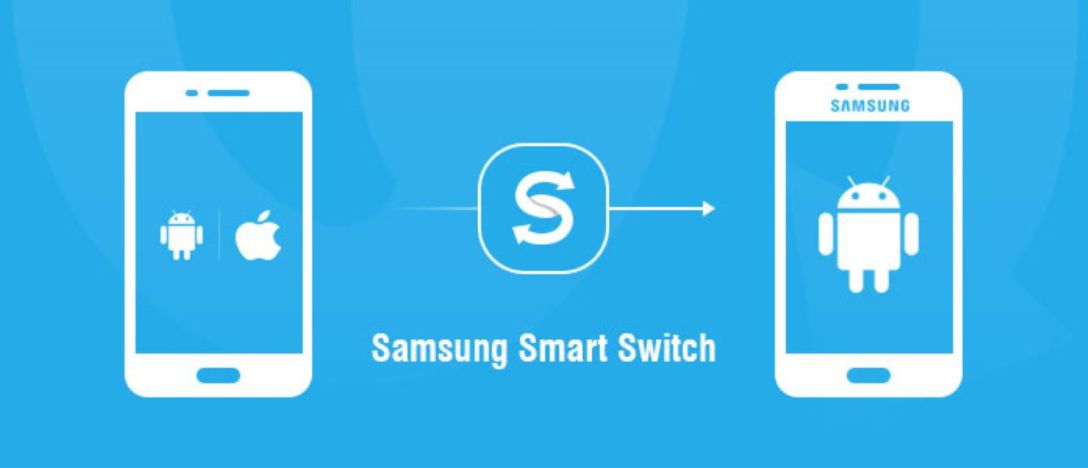
Calls and texts are a bit easier. I will be switching to a Samsung phone so this section will be directed more at that phone brand. All you will need it the adapter that came in the box with the android phone. On their modern phones this will be a USB C to USB adapter. You will also need to download the Smart Switch app on your new phone. Finally, make sure that iMessage is turned off on your iPhone.
Open the Smart Switch app on your Galaxy phone and if it asks, you want to “receive data”. You can select WiFi for the method if you want but cable will be faster. If you select that you want to use the cable then you will now connect the two phones together using your iPhone’s cord and the adapter we talked about earlier. On your iPhone you must “Trust” the device. After that you can follow the prompts in the app.
Right now you are probably wondering why we did not just use this app from the beginning and transfer all our phone contents over with it. You can do that and it will work okay, but I think doing the photos, contacts, and calendars manually works much better and future proofs the process if you ever switch phones again. Google apps are available on most devices you will use and syncing all your data with them allows for a much smoother transition from one device to another.
TL;DR
When switching from iOS to Android make sure to back up your pictures, calendar, contacts, texts, and phone call history. You can use the Smart Switch app for this but there are better ways of doing it.

 My Everyday Tech